

Documentation Index
Fetch the complete documentation index at: https://wb-21fd5541-docs-2661.mintlify.app/llms.txt
Use this file to discover all available pages before exploring further.
What is Launch
Try in Colab
How it works
Launch is composed of three fundamental components: launch jobs, queues, and agents. A launch job is a blueprint for configuring and running tasks in your ML workflow. Once you have a launch job, you can add it to a launch queue. A launch queue is a first-in, first-out (FIFO) queue where you can configure and submit your jobs to a particular compute target resource, such as Amazon SageMaker or a Kubernetes cluster. As jobs are added to the queue, launch agents poll that queue and run the job on the system targeted by the queue.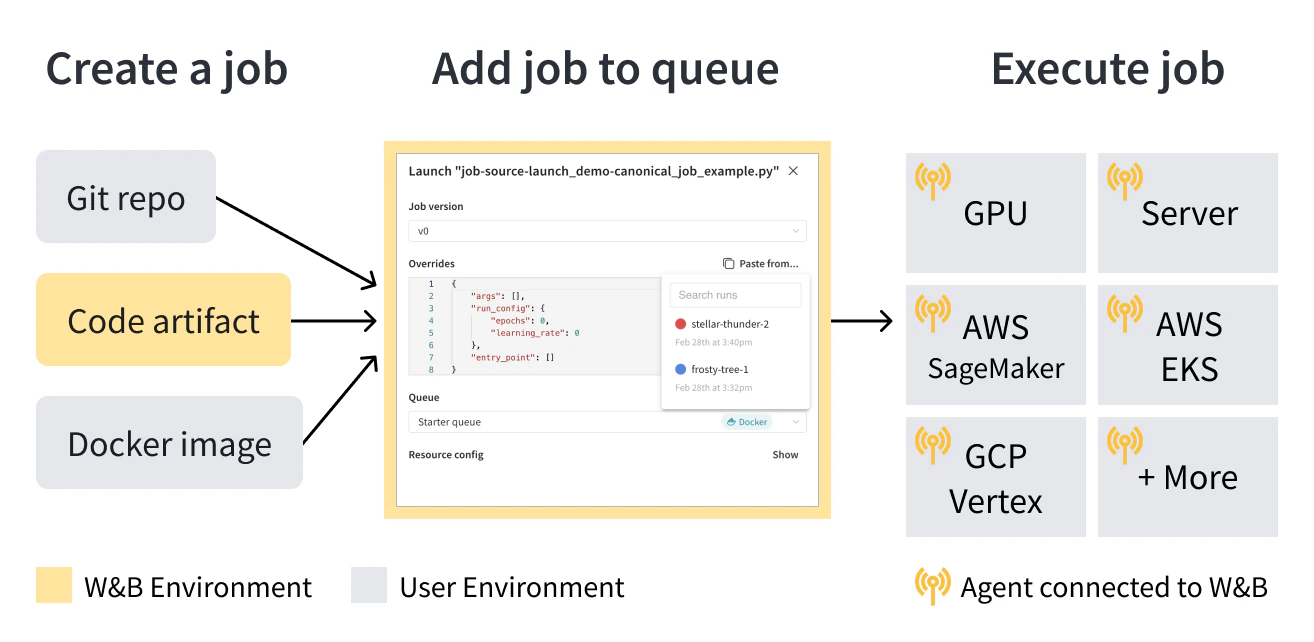
Get started
Depending on your use case, explore the following resources to get started with W&B Launch:- If this is your first time using W&B Launch, start with the Launch walkthrough guide.
- Learn how to set up W&B Launch.
- Create a launch job.
- Check out the W&B Launch public jobs GitHub repository for templates of common tasks like deploying to Triton, evaluating an LLM, or more.
- View launch jobs created from this repository in this public
wandb/jobsproject W&B project.
- View launch jobs created from this repository in this public
Walkthrough
This page walks through the basics of the W&B Launch workflow.W&B Launch runs machine learning workloads in containers. Familiarity with containers isn’t required but may be helpful for this walkthrough. See the Docker documentation for a primer on containers.
Prerequisites
Before you get started, ensure you have satisfied the following prerequisites. These cover the account, tooling, and authentication you need to run the commands later in this walkthrough.- Sign up for an account at https://wandb.ai/site and then log in to your W&B account.
- This walkthrough requires terminal access to a machine with a working Docker CLI and engine. See the Docker installation guide for more information.
- Install W&B Python SDK version
0.17.1or higher: - In your terminal, run
wandb loginor set theWANDB_API_KEYenvironment variable to authenticate with W&B.
- Log in to W&B
- Environment variable
In your terminal, run:
Create a launch job
A launch job is the blueprint for the workload you want Launch to run, so you need one before you can submit work to a queue. Create a launch job in one of three ways: with a Docker image, from a git repository, or from local source code:- With a Docker image
- From a git repository
- From local source code
To run a pre-made container that logs a message to W&B, open a terminal and run the following command:The preceding command downloads and runs the container image
wandb/job_hello_world:main.Launch configures the container to report everything logged with wandb to the launch-quickstart project. The container logs a message to W&B and displays a link to the run in W&B. Click the link to view the run in the W&B UI.Create a queue
With a launch job in place, the next step is to create a queue that defines where and how jobs run. Launch is designed to help teams build workflows around shared compute. In the examples so far, thewandb launch command has run a container synchronously on the local machine. Launch queues and agents enable asynchronous runs of jobs on shared resources and advanced features like prioritization and hyperparameter optimization. To create a basic queue, follow these steps:
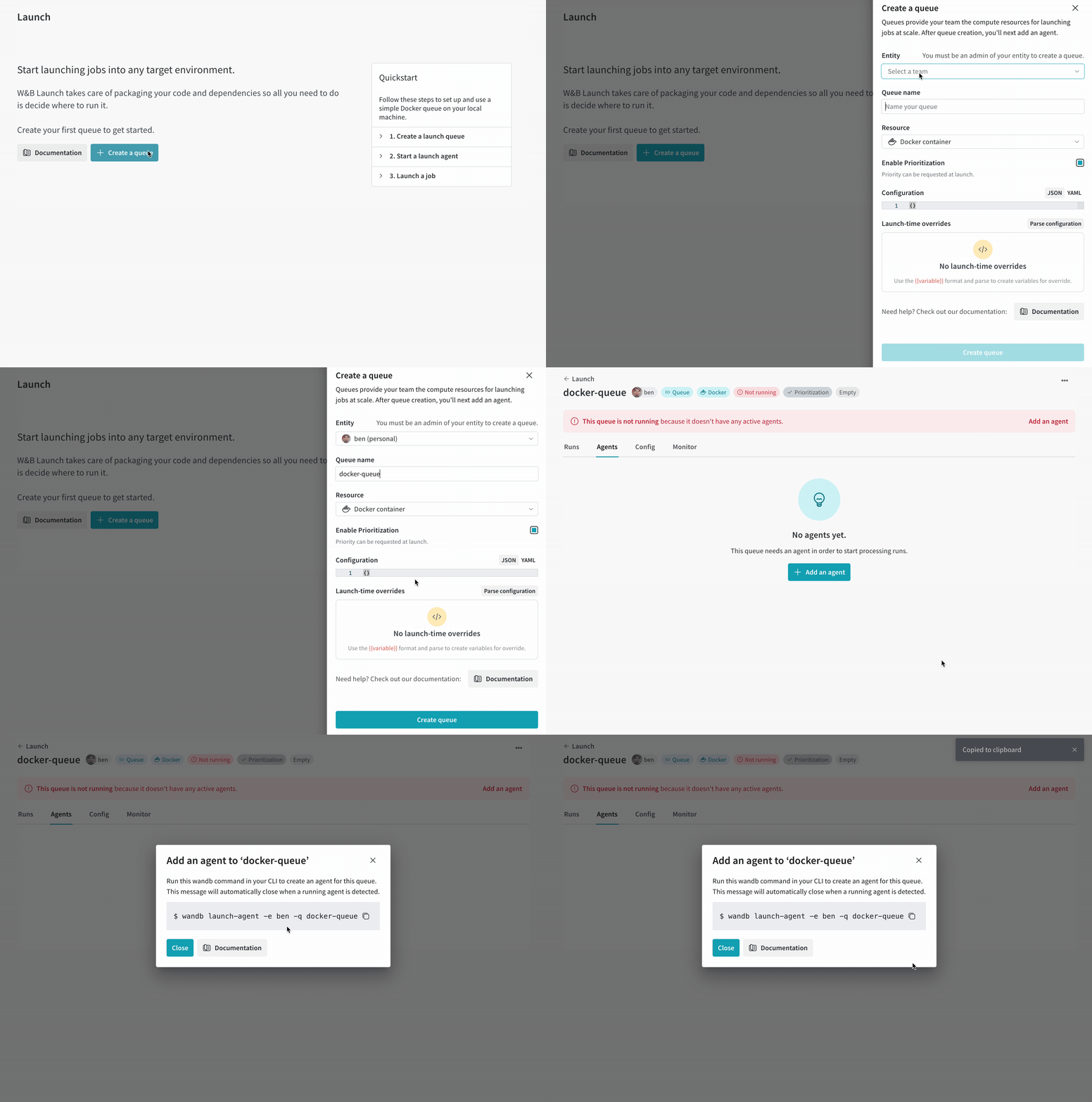
- Navigate to wandb.ai/launch and click the Create a queue button.
- Select an Entity to associate the queue with.
- Enter a Queue name.
- Select Docker as the Resource.
- Leave Configuration blank.
- Click Create queue.
Connect an agent to the queue
A queue stays idle until an agent polls it, so you must connect an agent before any jobs can run. The queue view displays an Add an agent button in a red banner at the top of the screen if the queue has no polling agents. Click the button to view and copy the command to run an agent. The command should look like the following:[QUEUE-NAME] with the name of your queue and [ENTITY-NAME] with your W&B entity. Run the command in a terminal to start the agent. The agent polls the specified queue for jobs to run. After it receives a job, the agent downloads or builds and then runs a container image for the job, as if you had run the wandb launch command locally.
Navigate back to the Launch page and verify that the queue now shows as Active.
Submit a job to the queue
With a queue and a polling agent in place, you can now submit one of the launch jobs you created earlier and watch it run on the shared compute. Navigate to your launch-quickstart project in your W&B account and open the jobs tab from the navigation on the left side of the screen. The Jobs page displays a list of jobs created from previous runs. Click your launch job to view source code, dependencies, and any runs created from the job. After you complete this walkthrough, the list contains three jobs. Pick one of the jobs and follow these instructions to submit it to the queue:- Click the Launch button to submit the job to a queue. The Launch drawer appears.
- Select the Queue you created earlier and click Launch.
wandb launch command can push jobs to the queue directly by specifying the --queue argument. For example, to submit the hello-world container job to the queue, run the following command:
[QUEUE-NAME] with the name of your queue.
You now have a complete W&B Launch workflow in place: a launch job, a queue, a polling agent, and a job running asynchronously on shared compute. You can reuse this pattern for your own training, evaluation, and inference workloads.