

This page describes how to configure advanced launch queue options, including queue config templates, dynamic macros, and accelerator base images. These options help administrators enforce guardrails and tailor queues to specific compute environments.Documentation Index
Fetch the complete documentation index at: https://wb-21fd5541-docs-2661.mintlify.app/llms.txt
Use this file to discover all available pages before exploring further.
Set up queue config templates
Queue config templates let administrators manage guardrails on compute consumption. Set defaults, minimums, and maximum values for fields such as memory consumption, GPU, and runtime duration. After you configure a queue with config templates, members of your team can alter the fields you defined only within the range you specified.Configure queue template
You can configure a queue template on an existing queue or on a new queue. The following procedure adds template fields to a queue’s config so that team members can only set values within the limits you define.- Navigate to the W&B Launch App.
- Select View queue next to the name of the queue you want to add a template to.
- Select the Config tab. This shows information about your queue such as when the queue was created, the queue config, and existing launch-time overrides.
- Navigate to the Queue config section.
- Identify the config key-values you want to create a template for.
- Replace the value in the config with a template field. Template fields take the form of
{{variable-name}}. - Click the Parse configuration button. When you parse your configuration, W&B automatically creates tiles below the queue config for each template you created.
- For each tile generated, you must first specify the data type (string, integer, or float) the queue config can allow. To do this, select the data type from the Type dropdown menu.
- Based on your data type, complete the fields that appear within each tile.
- Click Save config.
launch config
InstanceType, your config looks like:
launch config
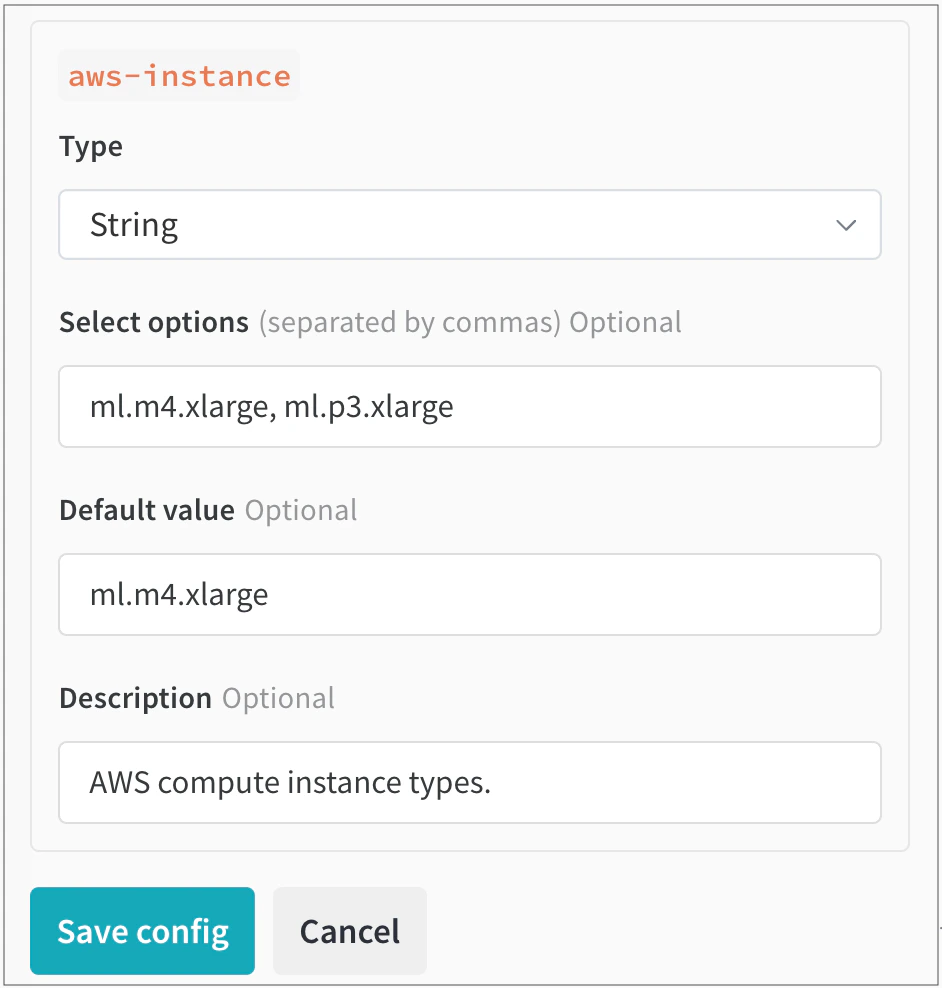
aws-instance appears underneath the Queue config.
From there, you select String as the data type from the Type dropdown. This populates fields where you can specify values a user can choose from. For example, in the following image the team admin configured two AWS instance types that users can choose from, ml.m4.xlarge and ml.p3.xlarge:
Dynamically configure launch jobs
You can dynamically configure queue configs using macros that the agent evaluates when it dequeues a job from the queue. Use macros to inject run-specific values into your queue config at launch time. You can set the following macros:| Macro | Description |
|---|---|
${project_name} | The name of the project the run launches to. |
${entity_name} | The owner of the project the run launches to. |
${run_id} | The ID of the run that launches. |
${run_name} | The name of the run that launches. |
${image_uri} | The URI of the container image for this run. |
Any custom macro not listed in the preceding table, for example
${MY_ENV_VAR}, is substituted with an environment variable from the agent’s environment.Use the launch agent to build images that execute on accelerators or GPUs
If you use launch to build images that run in an accelerator environment, you might need to specify an accelerator base image so that the resulting image is compatible with the target hardware. The accelerator base image must satisfy the following requirements:- Debian compatibility. The Launch Dockerfile uses
apt-getto fetchpython. - Compatible CPU and GPU hardware instruction sets. Make sure your CUDA version is supported by the GPU you intend to use.
- Compatibility between the accelerator version you provide and the packages installed in your ML algorithm.
- Any additional steps required to set up the installed packages for compatibility with the hardware.
Use GPUs with TensorFlow
To ensure TensorFlow uses your GPU, specify a Docker image and its image tag for thebuilder.accelerator.base_image key in the queue resource configuration.
For example, the tensorflow/tensorflow:latest-gpu base image ensures TensorFlow uses your GPU. You can configure this using the resource configuration in the queue.
The following JSON snippet demonstrates how to specify the TensorFlow base image in your queue config:
Queue config