

Documentation Index
Fetch the complete documentation index at: https://wb-21fd5541-docs-2661.mintlify.app/llms.txt
Use this file to discover all available pages before exploring further.
Try in Colab
- Standard sweep scheduler: Use the default W&B Sweep scheduling engine that controls W&B Sweeps. The familiar
bayes,grid, andrandommethods are available. - Custom sweep scheduler: Configure the sweep scheduler to run as a job. This option enables full customization. The following section shows an example of how to extend the standard sweep scheduler to include more logging.
This guide assumes that W&B Launch has been previously configured. If W&B Launch isn’t configured, see the how to get started section of the launch documentation.
We recommend you create a sweep on launch using the
basic method if you’re a first-time user of sweeps on launch. Use a custom sweeps on launch scheduler when the standard W&B scheduling engine doesn’t meet your needs.Create a sweep with a W&B standard scheduler
This section describes how to create W&B Sweeps with Launch using the standard scheduling engine. You can create a sweep interactively with the W&B App or programmatically with the W&B CLI. For advanced configurations of Launch sweeps, including the ability to customize the scheduler, use the CLI.Before you create a sweep with W&B Launch, ensure that you first create a job to sweep over. See the Create a Job page for more information.
- W&B app
- CLI
Create a sweep interactively with the W&B App.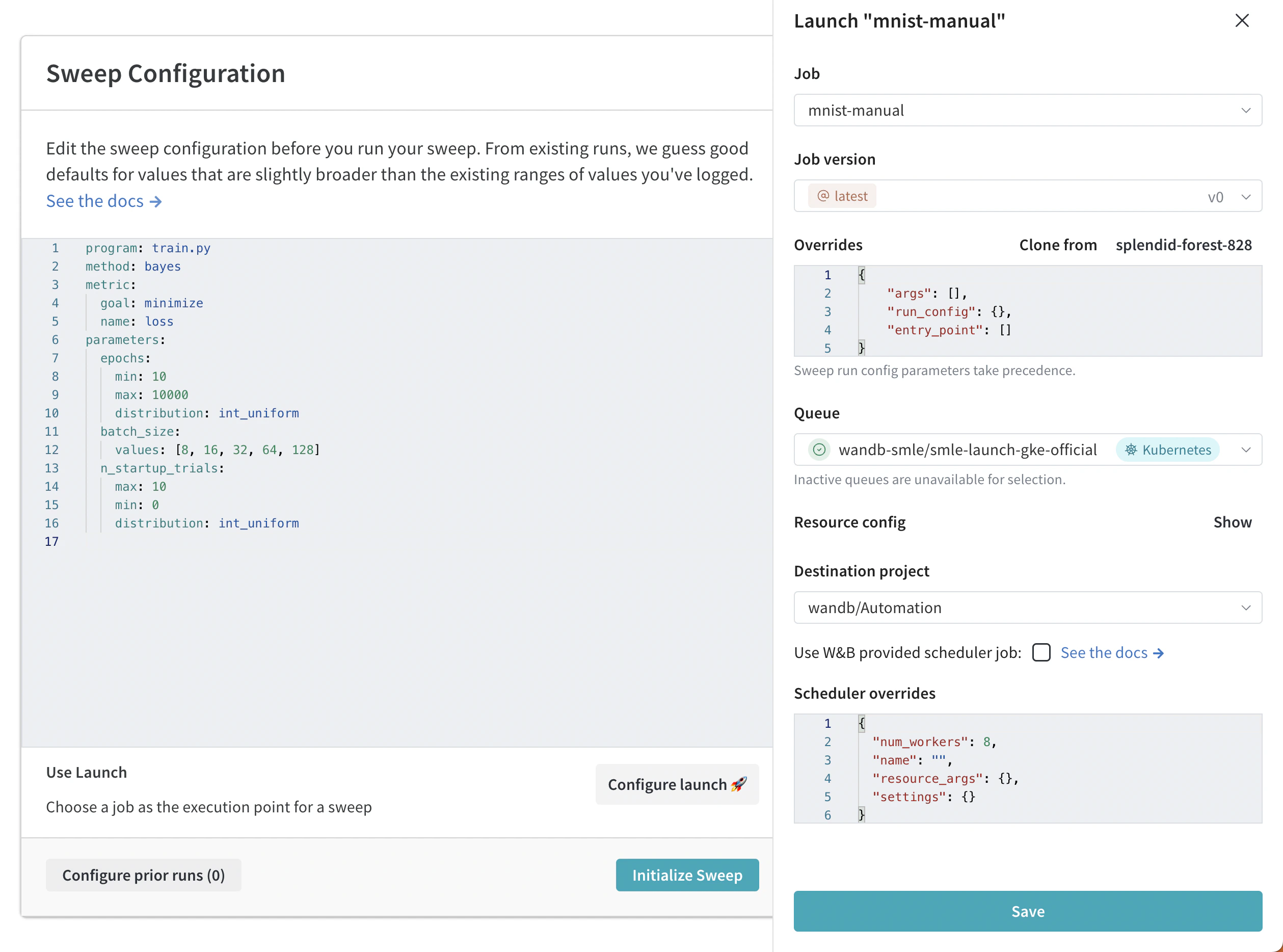
- Navigate to your W&B project on the W&B App.
- Select the sweeps icon in the project sidebar (broom image).
- Select the Create Sweep button.
- Click the Configure Launch button.
- From the Job dropdown menu, select the name of your job and the job version you want to create a sweep from.
- From the Queue dropdown menu, select a queue to run the sweep on.
- From the Job Priority dropdown, specify the priority of your launch job. A launch job’s priority is set to “Medium” if the launch queue doesn’t support prioritization.
- Optional: Configure override args for the run or sweep scheduler. For example, using the scheduler overrides, configure the number of concurrent runs the scheduler manages using
num_workers. - Optional: From the Destination Project dropdown menu, select a project to save the sweep to.
- Click Save.
- Select Launch Sweep.
Create a custom sweep scheduler
This section describes how to create a custom sweep scheduler when the standard scheduling engine doesn’t meet your needs. You can create a custom sweep scheduler either with the W&B scheduler or a custom scheduler.Using scheduler jobs requires
wandb CLI version >= 0.15.4- W&B scheduler
- Custom scheduler
- Optuna scheduler
Create a launch sweep using the W&B sweep scheduling logic as a job.
- Identify the W&B scheduler job in the public wandb/sweep-jobs project, or use the job name:
'wandb/sweep-jobs/job-wandb-sweep-scheduler:latest'. - Construct a configuration yaml with an additional
schedulerblock that includes ajobkey pointing to this name, as shown in the following example. - Use the
wandb launch-sweepcommand with the new config.
jobs/sweep_schedulers. This guide shows how to use the publicly available W&B Scheduler Job, and demonstrates a process for creating custom sweep scheduler jobs.
Resume sweeps on launch
This section describes how to resume a launch-sweep from a previously launched sweep, which is useful when you want to continue exploring with updated scheduler settings or on a different queue. Although you can’t change hyperparameters and the training job, you can change scheduler-specific parameters and the queue it is pushed to.If the initial sweep used a training job with an alias like
latest, resuming can lead to different results if the latest job version has changed since the last run.- Identify the sweep name/ID for a previously run launch sweep. The sweep ID is an eight-character string (for example,
hhd16935) that you can find in your project on the W&B App. - If you change the scheduler parameters, construct an updated config file.
- In your terminal, execute the following command. Replace content wrapped in
[and]with your information: