

This page shows administrators of Self-Managed W&B deployments how to disable automatic version upgrades for W&B Server and pin its version to a specific release. Pinning a version gives you control over when upgrades happen. This control is useful when you need to coordinate upgrades with internal change management processes or validate a release in a staging environment before you roll it out. These instructions work only for deployments managed by the W&B Kubernetes Operator.Documentation Index
Fetch the complete documentation index at: https://wb-21fd5541-docs-2661.mintlify.app/llms.txt
Use this file to discover all available pages before exploring further.
W&B supports a major W&B Server release for 12 months from its initial release date. Customers with Self-Managed instances are responsible for upgrading in time to maintain support. Avoid staying on an unsupported version. W&B recommends that customers with Self-Managed instances update their deployments with the latest release at least once per quarter to maintain support and to receive the latest features, performance improvements, and fixes.
Requirements
- W&B Kubernetes Operator
v1.13.0or newer - System Console
v2.12.2or newer
version values for the operator-wandb and system-console components.
Disable automatic updates
To disable automatic updates, use the System Console to pin W&B Server to a specific version, then check the Operator reconciliation logs to confirm that version pinning is active.-
Log in to the W&B App as a user with the
adminrole. - Click the user icon at the top, then click System Console.
- Go to Settings > Advanced, then select the Other tab.
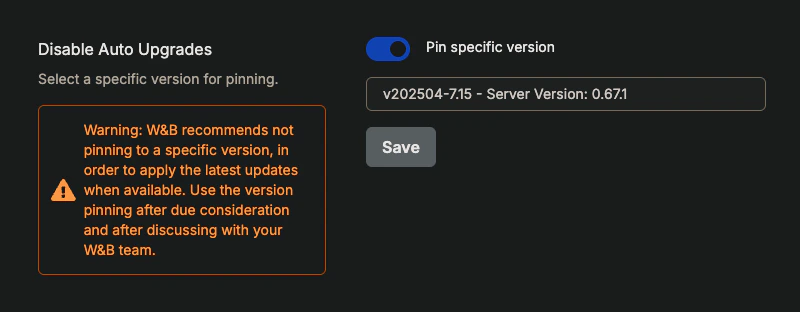
- In the Disable Auto Upgrades section, turn on Pin specific version.
- Click the Select a version drop-down list, then select a W&B Server version.
-
Click Save.
Automatic upgrades are turned off and W&B Server is pinned at the version you selected.
-
Verify that automatic upgrades are turned off. Go to the Operator tab and search the reconciliation logs for the string
Version pinning is enabled.