

Learn how to use the Serverless Inference service through the web UI. This guide shows you how to access the service, try models in the Playground, compare models side by side, and monitor billing and usage. Use the UI when you want to experiment with models interactively without writing code. Before you use the UI, complete the prerequisites.Documentation Index
Fetch the complete documentation index at: https://wb-21fd5541-docs-2661.mintlify.app/llms.txt
Use this file to discover all available pages before exploring further.
Access the Inference service
The following sections describe three ways to access the Inference service. Choose whichever entry point best matches your current workflow.Direct link
Navigate to https://wandb.ai/inference.From the Inference tab
- Navigate to your W&B account at https://wandb.ai/.
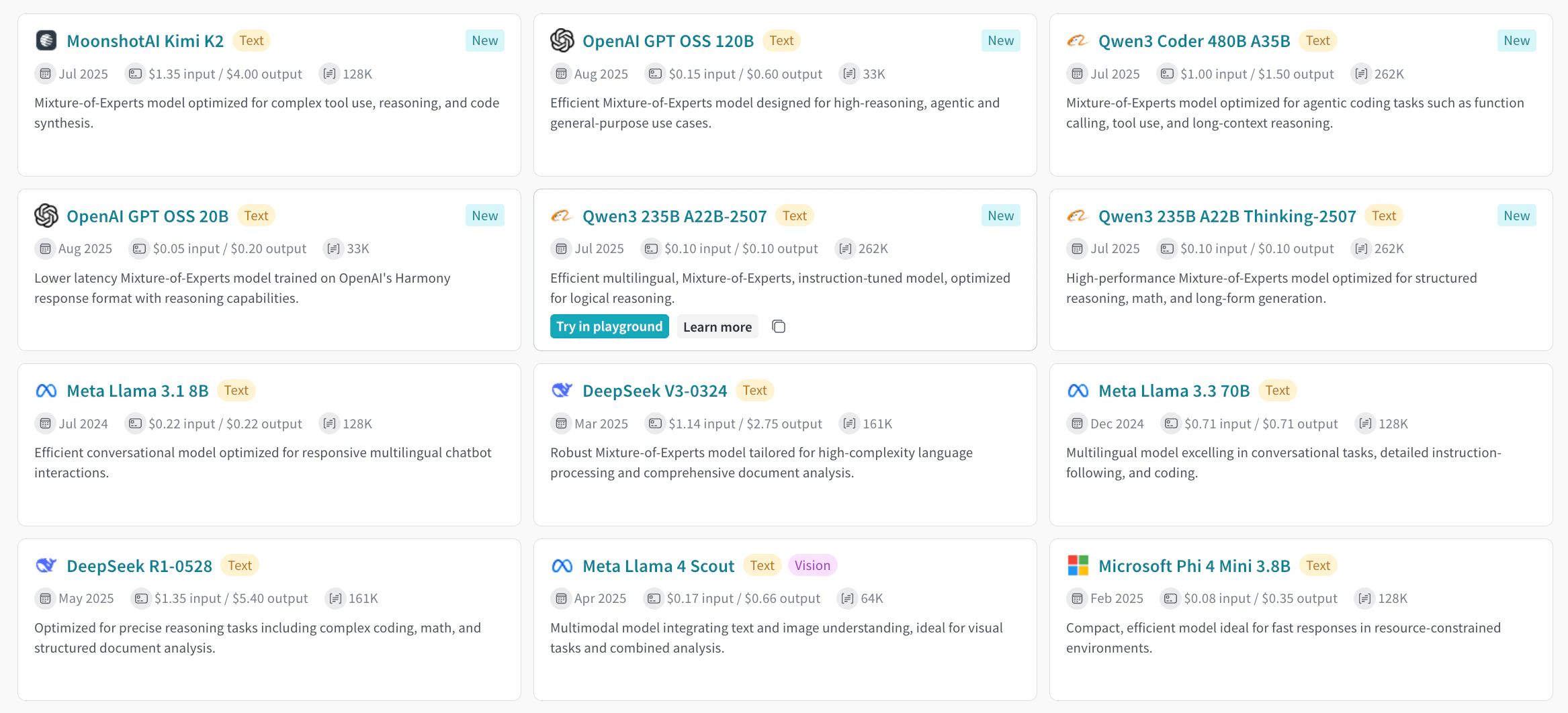
- Select Inference from the project sidebar. A page appears with available models and model information.
From the Playground tab
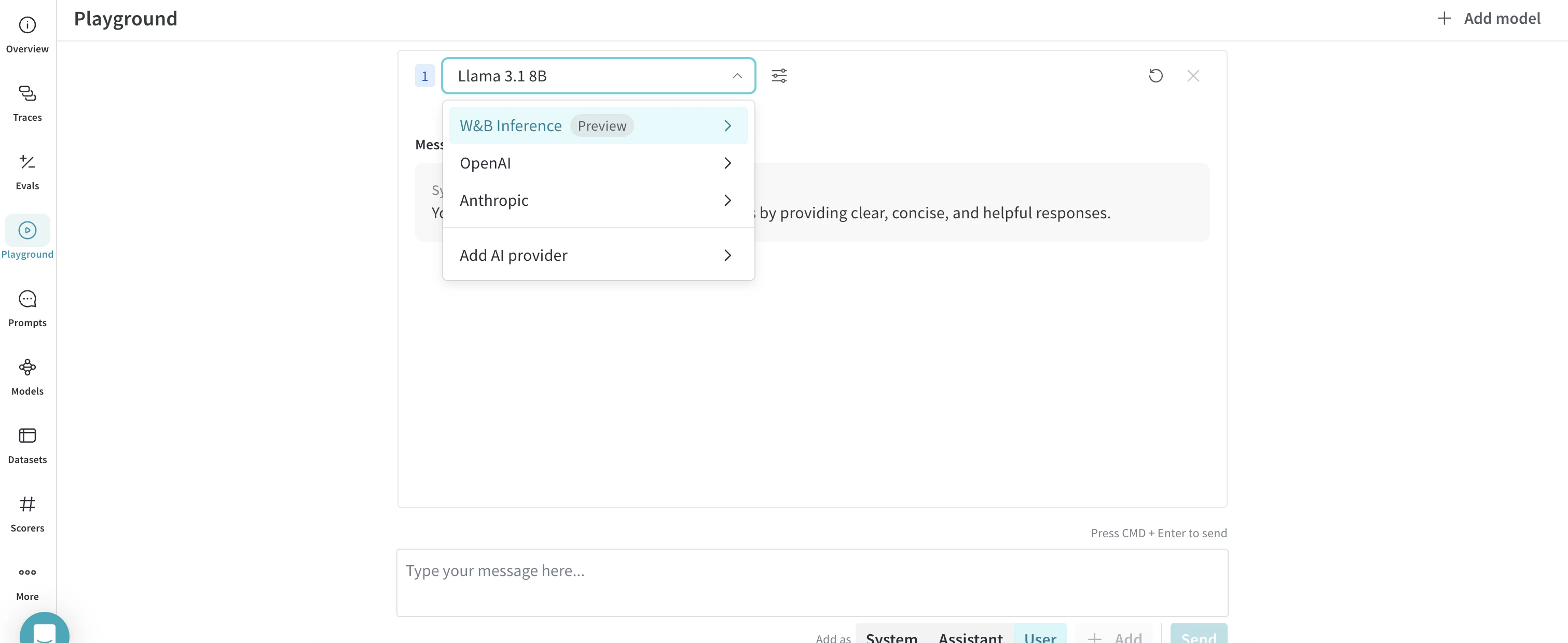
- Select Playground from the project sidebar. The Playground chat UI appears.
- Hover over Serverless Inference in the LLM dropdown list. A dropdown with available models appears on the right.
- From the models dropdown, you can:
- Click any model name to try it in the Playground.
- Compare multiple models
Try a model in the Playground
After you select a model, you can test it in the Playground to evaluate its responses and tune its behavior before you integrate it elsewhere. Available actions include:- Customize model settings and parameters.
- Add, retry, edit, and delete messages.
- Save and reuse a model with custom settings.
- Compare multiple models.
Compare multiple models
You can compare Inference models side by side in the Playground to evaluate quality, latency, and output style for the same prompt. You can access the Compare view from two places, described in the following sections.From the Inference tab
- Select Inference from the project sidebar. The available models page appears.
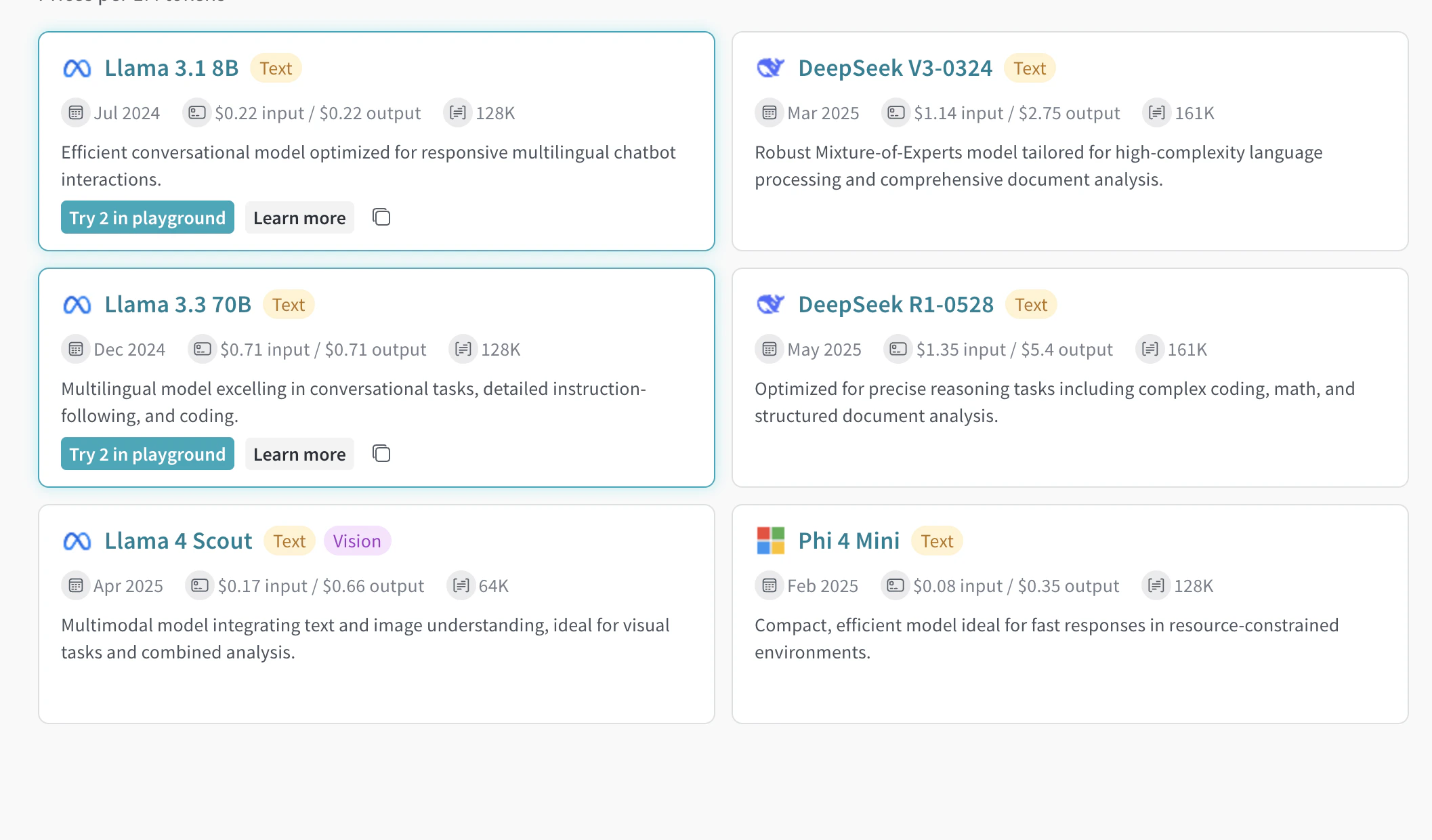
- Click anywhere on a model card (except the model name) to select it. The card is highlighted to show it’s selected.
- Repeat for each model you want to compare.
- Click Compare [N] models in the Playground on any selected card, where
[N]is the number of models you selected. The comparison view opens.
From the Playground tab
- Select Playground from the project sidebar. The Playground chat UI appears.
- Hover over Serverless Inference in the LLM dropdown list. The models dropdown appears on the right.
- Select Compare from the dropdown. The Inference tab appears.
- Click anywhere on a model card (except the model name) to select it. The card is highlighted to show it’s selected.
- Repeat for each model you want to compare.
- Click Compare [N] models in the Playground on any selected card. The comparison view opens.
View billing and usage information
Organization admins can track credit balance, usage history, and upcoming bills from the W&B UI. Use this view to monitor spend and forecast upcoming charges.- Navigate to the W&B Billing page in the UI.
- Find the Inference billing information card.
- From here you can:
- Click View usage to see your usage over time.
- View upcoming inference charges (for paid plans).
Next steps
- Review available models to find the best one for your needs.
- Try the API for programmatic access.
- See usage examples for code samples.